Latest update: December 2025
Tested with: DSM 7.2, 7.3
Skill level: Entry
1. Overview
You wouldn’t know it from Synology’s website, but every modern Synology NAS runs an embedded version of Linux. With an insignificant amount of effort on your part, your Synology NAS will provide you with access to the Linux command line interface using the SSH protocol. For most Synology users command line access is hardly necessary and, frankly, rarely helpful. Regardless, there are several edge cases where it’s necessary. If you need to access your NAS’s command line interface, this guide is for you.
What you’ll need
- A Synology NAS
- A computer with Windows, macOS, or Linux
2. Enable command line access
- Sign in to your NAS from the web UI using an admin account.
- Open Control Panel and select Terminal.
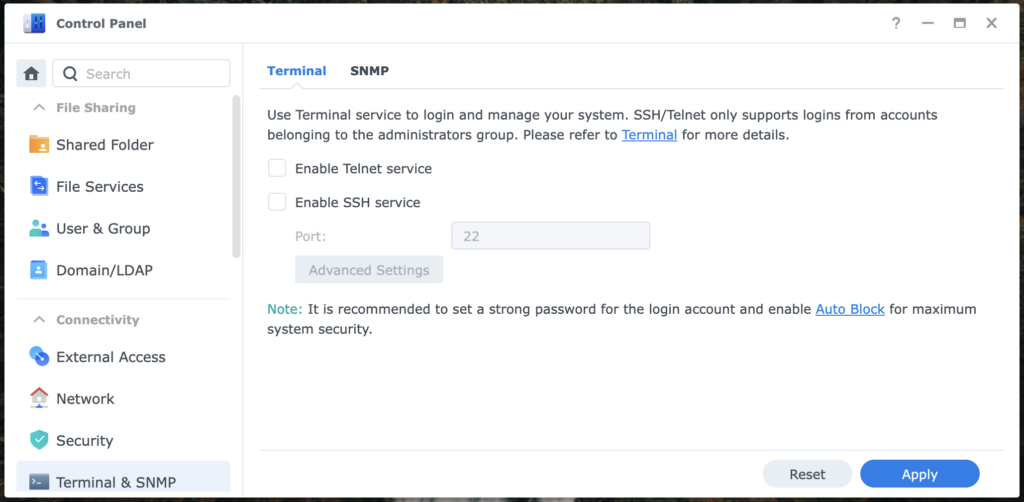
- Select Enable SSH service and then Apply. This enables access to the command line interface using the SSH clients.
Note
Changing SSH from port 22 to a high-numbered port (49152-65535) can reduce automated probes that specifically target SSH on port 22. If your NAS is not reachable from the internet or if you will disable SSH shortly after enabling it, keeping the default port 22 is usually acceptable.
With these steps complete, your NAS is now ready for you to connect.
3. Connect via SSH
The SSH client you connect with varies according to the operating system you use. For Windows we’ll use PowerShell, for macOS the Terminal application, and Linux the default terminal emulator.
Windows
- Open the Windows PowerShell application. This is included in most versions of Windows.
- Enter ssh username@ipaddress -p22, substituting your DSM username, NAS IP address, and if you set a port other than 22, that port number.
- You will see a message about an encryption key, and a prompt asking if you want to continue. Type yes.
- Enter your DSM account password at the password prompt.
You should now be logged in to your Synology NAS via SSH. When you are ready to close the connection, type exit at the command line and press enter.
###
macOS
- Open macOS’s Terminal application.
- Enter ssh username@ipaddress -p 22, substituting your DSM username, NAS IP address, and if you set a port other than 22, that port number.
- You will see a message about an encryption key, and a prompt asking if you want to continue. Type yes.
- Enter your DSM account password at the password prompt.
You should now be logged in to your Synology NAS via SSH. When you are ready to close the connection, type exit at the command line and press return.
###
Linux
- Open a Linux terminal emulator. On most Linux distributions this is achieved by pressing ctrl + alt + t on the keyboard.
- Enter ssh username@ipaddress -p 22, substituting your DSM username, NAS IP address, and if you set a port other than 22, that port number.
- You will see a message about an encryption key, and a prompt asking if you want to continue. Type yes.
- Enter your DSM account password at the password prompt.
You should now be logged in to your Synology NAS via SSH. When you are ready to close the connection, type exit at the command line and press return.
That’s it for this guide. Good luck and have fun!!1!!!
TCP